
Deciding what Workstation to purchase can be a daunting and difficult task, especially when you are spending a lot of money, so you want to make sure you buy the best machine for your budget.
We won’t be recommending any specific machines below, but we will provide you with various key pieces of information and how they may be relevant to SOLIDWORKS
CPU
The CPU (Central Processing Unit) can be considered the main starting component as it not only acts as the heart of your system, but also dictates what other hardware is compatible with your system.
There are two main Manufacturers for CPUs in relation to CAD workstations, Intel and AMD.
Apple Silicon (Mac) and ARM-based CPUs are not supported for SOLIDWORKS, so avoid those
For this blog, we will focus more on Intel as they have the slight market lead and are generally used more by SOLIDWORKS users (although that doesn’t mean they are ‘better’). The general points made are still true for AMD CPUs.
CPU Categories/Brands
Both Intel and AMD have different categories depending on whether the CPUs are for consumer use or Workstation/Server use. The ‘Core Ultra’ series is Intel's consumer CPU lineup (or just ‘Core’ for laptops), and ‘Xeon’ is their Workstation/Server CPU lineup.
NOTE – Although SOLIDWORKS do recommend Xeon processors for their higher core count and increased reliability (and support for ECC RAM), these CPUs are more expensive. We will not focus on these in this blog due to the price difference, and most SOLIDWORKS users not using these for this reason.
CPU Tiers
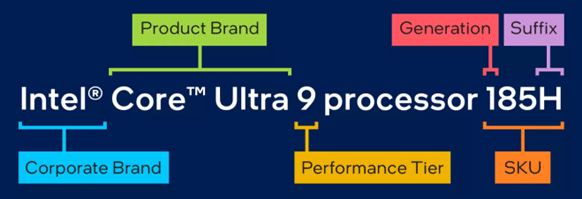
Consumer CPUs will be broken up into different Tiers based on their performance levels. Both Intel and AMD have the Tiers 3/5/7/9, with the higher number being the ‘higher performance’
For this reason, you will often find Intel Core Ultra 7 or Intel Core Ultra 9 CPUs. In previous years these were referred to as i7 or i9 CPUs before Intel introduced the ‘Ultra’ brand name.
CPU SKUs
After the Tier, we will then normally have around 3-5 numbers where the first number will represent the generation of the CPU. Normally, the first digit would go up by 1 each year or two when new CPU lineups are introduced.
However, Intel completely changed their naming with the most recent generation so the first digit went back to 1 and is not at 2. The previous highest generation was the 13,XXX series
The subsequent digits represents level of performance, with the higher number generally having higher performance in that years generation.
A final letter (or 2) may be found at the end as a suffix wich will usually tell you if the CPU could be overclocked, doesn’t include discreet graphics or a power optimised version, etc.
So which CPU should I purchase?
When it comes to picking a CPU for SOLIDWORKS, there are likely four main considerations. The Clock Speed (GHz), the Core Count (4,8,16 etc), the age and the Price.
If you generally use SOLIDWORKS for part modelling, assembly creation or Drawing then prioritising the Clock Speed of the CPU will be more important as SW is not multi-threaded so a high number of Cores will not be as beneficial. Other programs and Windows in general can still use the other cores that SOLIDWORK is not using.
If however, you focus more on Simulations or Visualize renders, then a higher core count is important as these can take advantage of multiple cores. Although GPUs should normally be used for Visualize renders.
We also normally want to aim for a CPU that is part of the newest generation or two, which will provide longer-term support, better power efficiency and often offer other features, capabilities or more compatibility for other hardware.
This means we need to try to find a balance between all of these facts, which is the difficult part, especially when a higher spec card of a previous generation is a similar price to a newer CPU but a lower SKU.
Many people will often use Benchmark scores to compare CPUs, which can be good in some ways, but there won’t be any way to say how a score of say 7,000 on a test for your current CPU, to 10,000 on a new CPU will reflect a change in performance inside SOLIDWORKS.
As a general rule, aim for the latest generation of CPU, then aim for the highest spec (SKU number) that is within your budget, but don’t blow all your money on a CPU alone.
Graphics Card
The Graphics Card in your machine is one of the key components in your PC, and it will not only handle all the tasks needed to display anything on your screen but can also be used to carry out various other ‘rendering’ tasks, such as in SOLIDWORKS Visualize, or more recently, AI features. For SOLIDWORKS itself, the main use for the GPU will be to display and update our graphics, such as zooming, rotating and panning. The GPU will not be used for rebuilds or saving a model for example.
There are 3 main companies that manufacture dedicated Graphics Cards: Nvidia, AMD and Intel.
NOTE – The onboard graphics that comes with Intel and AMD CPUs should not be used for SW, and a dedicated GPU should be used instead.
Intel are relatively new to the discrete GPU market and currently focuses on the low-mid range GPUs. Although some into GPUs are supported by SOLIDWORKS you may want to check if they are supported y other software you use due to them being newer.
AMD have been around for a long time, however, they only have a ~7% market share of the GPU market
NVIDIA is often considered the leader in the GPU marketplace with a 92% market share.
Similar to CPUs, GPUs have two different categories: Consumer (or gaming) cards, and Workstation cards.
For SOLIDWORKS, we want to make sure that we are using Workstation GPUs, as these are the only graphics cards which are supported by SOLIDWORKS and will allow features like RealView Graphics to function. Some users will report no issues running an unsupported GPU with SOLIDWORKS, however, this is often users getting ‘lucky’ as using unsupported hardware is far more likely to have issues (graphical/visual glitches, bugs, performance degradation, etc), and if an issue is caused by an unsupported GPU, then support options will be limited.
GPU Generations
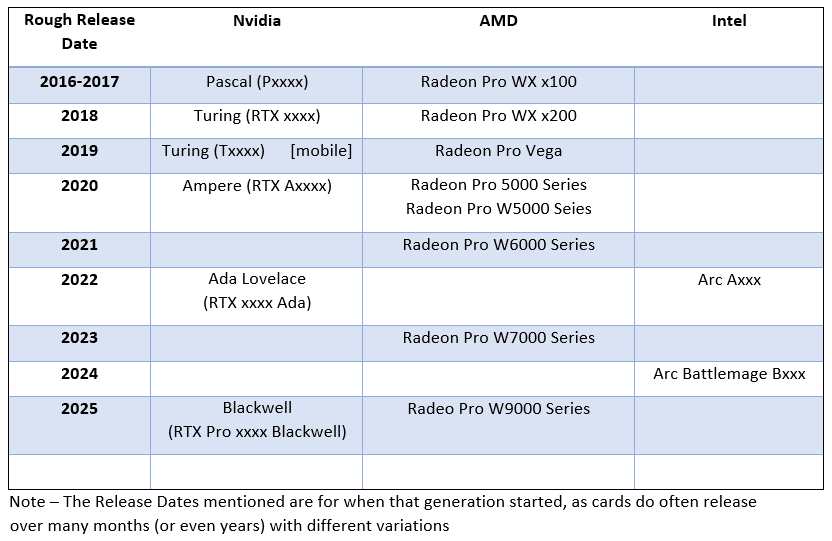
Determining what generation a GPU is (how new a GPU is) is much more difficult than with CPUs as a simple number is not used. Each new generation of GPU is often linked with a new GPU Architecture, which is what is used to run the GPU.
The table below will be used to give an idea of when different Generations of GPUs were released with the x’s being the Tier (described in the next section)
GPU Models
The x’s in the table above would be replaced by digits, where the higher the number, the higher the spec of the GPU. Some alternate names/numbers do exist from time to time, especially in the mobile GPU market, where Nvidia like to use “MAX-Q” branding for this.
Taking Nvidia, their 4 digits tend to be 1000, 2000, 4000, 5000 and 6000, with other digits being used to represent minor changes or variations.
The 1000/2000 tiers are good for most SOLIDWORKS users who are just getting started and have relatively simple (or moderate
Users with more graphically intense models, such as those with thousands of components or highly detailed models (high graphic triangle counts), or those who do a lot of rendering work, would likely benefit from a 4000-tier GPU.
A 6000-tier card will very rarely be needed for SOLIDWORKS unless you are really pushing SOLIDWORKS with tens of thousands of parts, extremely detailed models or doing other highly GPU-intensive workloads.
GPU Driver
Assuming you have selected a supported graphics card, you will want to make sure you are using a supported GPU Driver. The recommended GPU Driver varies depending on the version (year) of SOLIDWORKS you are using, so it is highly recommended to check HERE for the driver that is recommended for your configuration.
Note – I wouldn’t worry if your exact PC is not mentioned if you decide to search for your exact PC manufacturer and model.
Checking a GPU’s support with SOLIDWORKS
SOLIDWORKS provide a list of supported graphics cards via the “Graphics Cards” drop-down at the link below, so make sure your GPU is listed here before purchasing a GPU or PC. - Hardware Certification | SOLIDWORKS
So which GPU should I purchase?
Assuming you want to stick with NVIDIA, we believe the starting point should be the RTX 1000 Ada or RTX 2000 Ada for most users, even though these are 2-4 years old.
For users with large and complex assemblies, you would probably want to consider the RTX 4000 Ada, or the newer RTX Pro 2000 or RTX Pro 4000.
The RTX Pro 5000 or RTX Pro 6000 is likely overkill for SOLIDWORKS use and is unlikely to see any performance gain.
RAM
The RAM (Random Access Memory) in your machine can affect performance, as any programmes or files you have open will need to store data in RAM. The more programmes you have open and the larger your SOLIDWORKS models, the more RAM your machine will want to use.
When your RAM is ‘full’, your machine will often use your slower Storage instead, which can drastically affect performance.
Although SOLIDWORKS will likely open and run with 8GB or 16GB RAM, you are likely to experience performance issues due to many common programs like Chrome, Teams, Edge, Outlook, etc using more and more RAM.
SOLIDWORKS recommends 32GB of RAM, which will likely be enough for most SOLIDWORKS users. However, users who work with very large/complex models, or who like to have lots of programs open at the same time, may benefit from having 64GB RAM. 128GB RAM should only be needed in extreme use cases, such as having extremely large models and running complex simulations.
If you are purchasing RAM separately (such as buying extra RAM), you will want to make sure that you purchase compatible RAM for your system. This will start by making sure you pick RAM that is the correct type, such as DDR4 or DDR5, and the correct speed. RAM will also have speeds such as 3200MHz, 5600MHz, 6000MHz, etc where the higher the speed, the faster the RAM is. There will also be a CL number, which will represent the latency of the RAM.
The final thing to pay attention to with RAM is whether it is ECC (Error Correcting Code) Memory. This is only compatible if your CPU is compatible, such as an Intel Zeon Processor. ECC RAM has generally gone through more thorough testing by the manufacturers and has the technology to try to fix certain memory issues itself to try and give the users a more reliable experience. ECC RAM is recommended by SOLIDWORKS.
Storage
Storage drives will affect various aspects of your machine, starting from how long it takes for your machine to boot up, how long it takes to open programs and how long it takes to open/save files (that are stored locally)
Choosing your Storage Drive/s for your machine comes down to two questions. How fast do you want your storage to be, and what storage space capacity is required? The latter question is often easier to answer, as this is based on how much storage you currently need and what you are expected to need in the years to come. For most users, either 512GB or 1TB is more than enough storage space when the majority of your company's data will be stored elsewhere.
For the speed of your drive, mechanical Drives have generally faded out of use and should not be used for installing/running SOLIDWORKS, your operating system or storing any data.
Although the term SSD (Solid State Drive) is used to describe non-mechanical drives that are faster forms of storage, things are more complex. SSDs will normally be either NVMe or SATA drives, with the former being much faster and recommended type. NVMe drives will come in the form of an M.2 drive.
Similar to RAM, storage drives will also have a range of speeds, which will impact overall PC performance; the higher the speed, the better. These will usually be represented as read/write speeds.
Where data is stored
Where the data you are working on is stored will have a huge impact on performance, even if you have the fastest drive and machine in the world. Although this might not be a factor when deciding on buying a new machine, it is something that will affect a user's overall performance on their machine when it comes to opening, editing and saving files.
Many customers will store their data on Network Drives, which might seem good at first, but can have flaws, such as;
- Slow – The time it takes to copy files from the server to the user's machine, and back, especially when working over slow connections or VPNs
- File corruption – This is the leading cause of files going corrupt, due to poor connections
- No data management tools for Revisions, Version control, refined permissions, approval processes and limited backup options.
We therefore recommend all users store their data in an enterprise data management solution that is designed for CAD, such as SOLIDWORKS PDM or the 3DEXPERIENCE Platform.
Operating System
Windows 10 is no longer supported with the release of SOLIDWORKS 2026, meaning users running Windows 10 will need to update to Windows 11 in order to use SOLIDWORKS 2026.
Windows 11 started support with SOLIDWORKS 2022 SP2, and currently has no end-of-life dates.
As Windows 10 is no longer supported by Microsoft, most users will want to update to Windows 11 if they haven’t already. If users are using SOLIDWORKS 2021 or earlier, it should be noted that updating to Windows 11 could cause issues with SOLIDWORKS 2021 (or earlier), especially with PDM and Composer.
We would recommend that you make sure that any new machines you purchase is compatible with Windows 11 so that you can upgrade in the future if you want to.
For SOLIDWORKS users that is no difference as to which version of Windows 11 you are using in terms of Pro, Pro for Workstations or Enterprise.
Mac and Linux are not supported operating systems and will not install SOLIDWORKS.
We would also recommend against running SOLIDWORKS through are virtulization software (VM).
Common Mistakes
Below is a list of common mistakes or misconceptions users can have when it comes to picking a new machine
Purchasing a PC that ‘works for now’
Buying a machine that works for you just now can be great (and cheaper), but it is always worth thinking of what machine you may need/want in future in terms of performance, as well as looking at software/hardware compatibility in future so that your hardware will last you a reasonable number of years. You may want to consider if you are likely to work with larger models, start simulation work or do photo-realistic rendering in the near future.
Buying a machine that can’t be upgraded.
If you or your IT are comfortable making hardware changes (watching out for any warranty violations) to a Desktop PC, it may be worth getting a machine that has spare RAM, PCIe or M.2 slots so that you can upgrade in future.
For the most part, laptops are rarely upgradable outside of storage upgrades.
Buy an unsupported Graphics Card because ‘people online’ said it worked for them.
Unsupported graphics cards (or any hardware) can sometimes work if you “get lucky”, but it is very much a potluck with your exact configuration, setup and files you are working with. Meaning issues could arise at any time, out of the blue, or you could have drastically different results with different models, even if they are very similar.
Buying a ‘fast’ laptop
Needing a portable workstation is a very common requirement. One thing we would like to make you aware of, which is often overlooked, is the cooling on the machine. A laptop with poor cooling can not only cause the machine to be very hot to the touch but can also cause your machine to thermal throttle.
Machine's efficiency power modes
Most machines running Windows will have various ‘Power Modes’, even on desktop machines. These can have drastic impacts on performance as Windows tries to be more ‘efficient’ even if you would otherwise be happy to use more power/battery. This isn’t really something to consider before purchasing a machine, but it should be tweaked afterwards to get the best performance for your needs.
Warranty, and building a PC yourself
Building a PC yourself by buying all the components separately is almost certainly going to be cheaper than buying a pre-built PC, but this will usually mean that the PC overall doesn’t have a warranty or repair programme, as each individual component would have its own warranty. So if you want peace of mind with more warranty/support options, then a pre-built PC from a reputable supplier would be best.
Summary
In summary, you want to aim for a machine that contains hardware that was released within the last couple of years, aiming for;
- A CPU with a decent core count, but prioritise clock speeds
- 32Gb RAM or more
- A supported and certified GPU
- Fast storage for your OS and data
- Windows 11 (latest updates)
Conclusion
Purchasing a new CAD Workstation (or multiple) can be a very daunting task when you could be spending thousands on just a single machine, but following the general guidance above and having supported hardware should hopefully give you some additional confidence in your purchasing decision, allowing users to get the most out of SOLIDWORKS.
If you have any questions about anything in this blog, please feel free to give us a call on 01324 550 760 or email us at SOLIDWORKS.Support@tmscadcentre.com
Learn more about how SOLIDWORKS technology can accelerate your projects