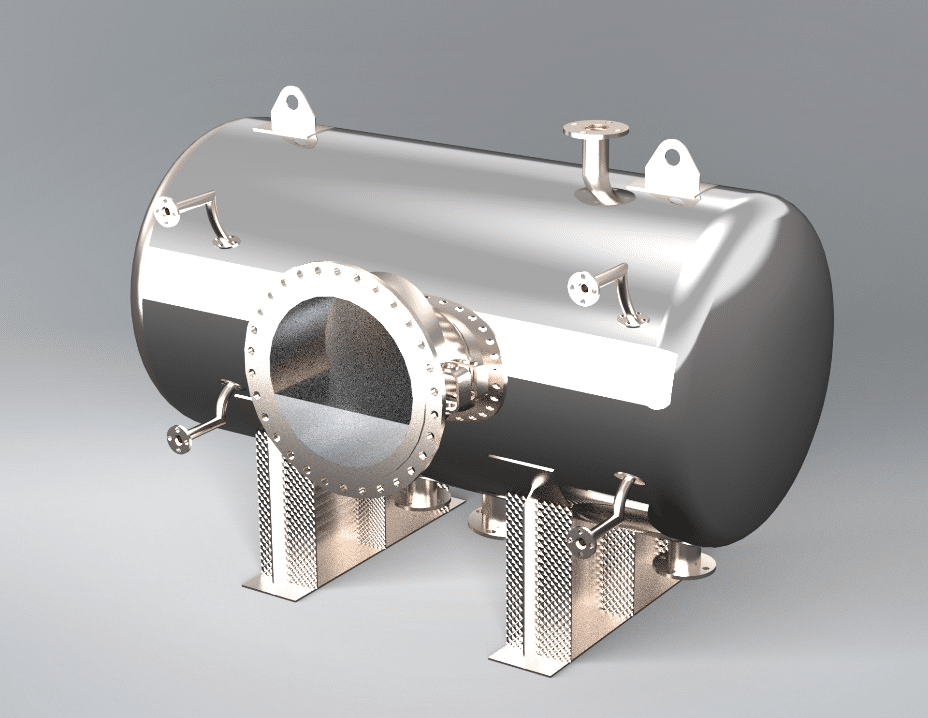
Over the years, many customers have asked how they can use SOLIDWORKS to calculate the internal volume of a model and determine how much liquid or gas can be contained inside. Although there is no dedicated “calculate internal volume” button, there are a few ways to achieve this using SOLIDWORKS
If your model is currently an assembly, save it as a SOLIDWORKS part for this process. You'll only need geometry for the sections that you want to calculate the internal volume. In this example, we will be using the Pressure Vessel below which can be downloaded HERE.
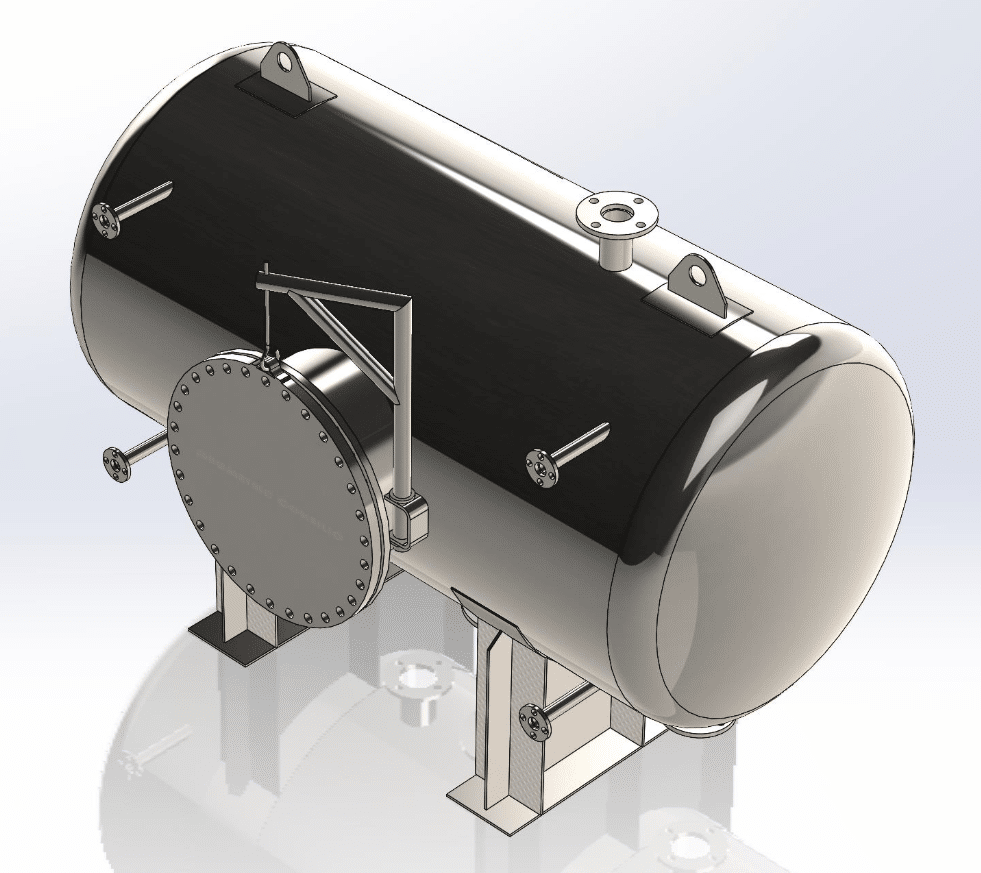
The next step is to close off the model so there are no sections open to the air. There are multiple ways of achieving this with some of them being:
- Using another part or solid model to block off the ends.
- Adding Surface bodies to close of the model.
- Adding a plane to the ends of the model – This is particularly useful if multiple sections of the model will end at the same point.
For the model above we will use a combination of adding a plane and some surfaces to close off the model to give us the result below.
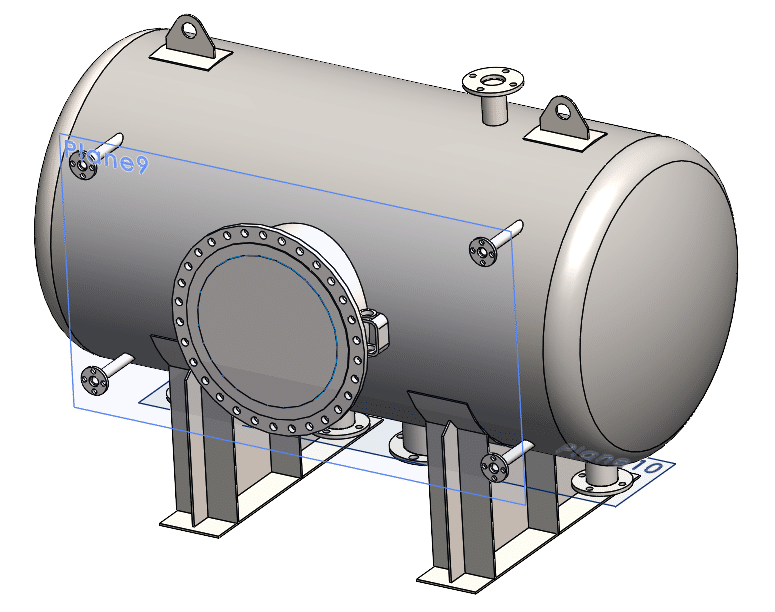
Once all sections are closed off you should use the Intersect command, selecting the Internal Region option on the left along with all features that form the closed body.
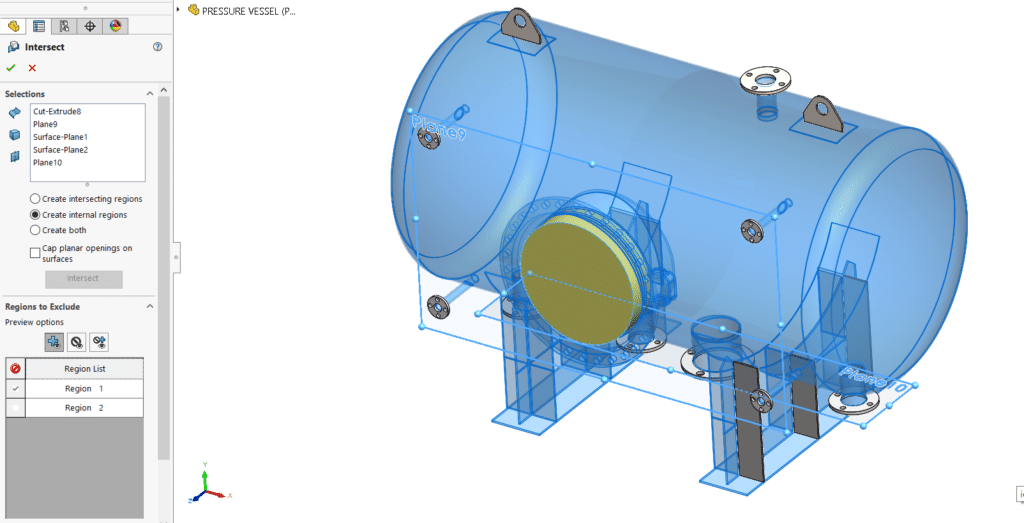
If you used a plane as part of the section scope you might find that you have two or more output (internal) bodies. In the example above my front plane cut some of the internal regions at the largest valve opening (shown in yellow) so I will select both sections in this case. Making sure to deselect the Merge Results option at the bottom so nothing combines unexpectedly.
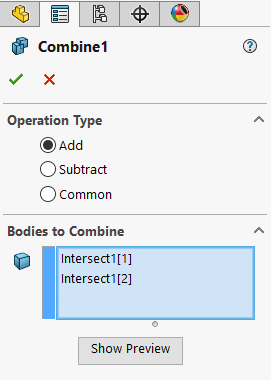
Any internal bodies can then be combined using another Intersect command, but this time selecting the ‘Add’ option and picking all internal bodies as the scope.
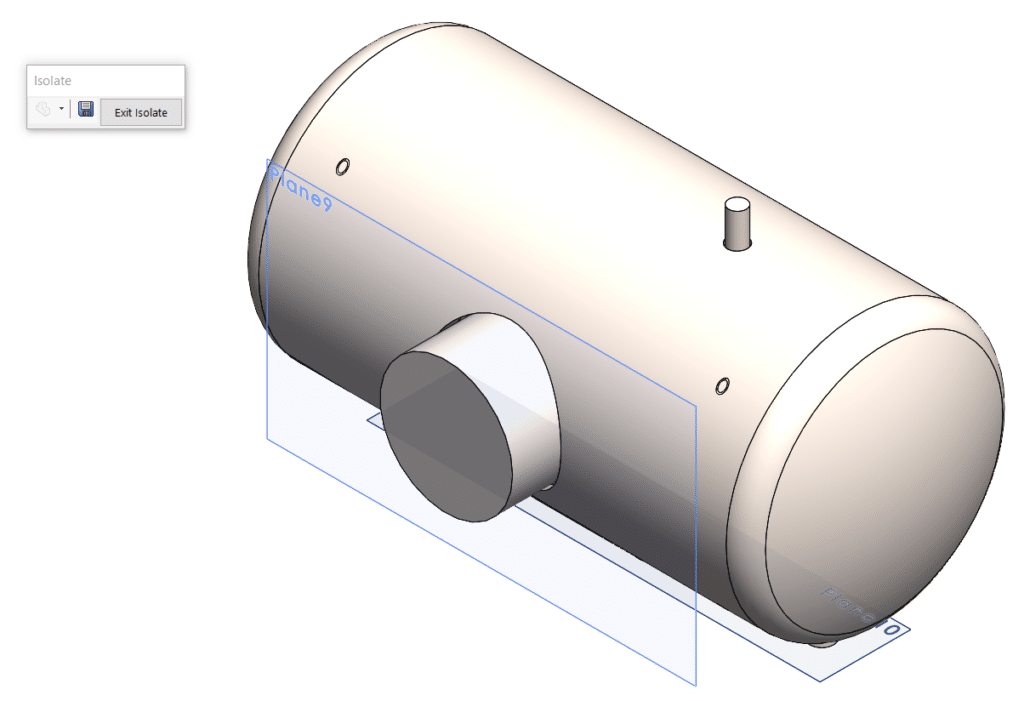
Isolating the resulting body gives you the outcome below showing only the internal region. At this stage, you can apply the appropriate material to this body, which in this case will be ‘Water’.
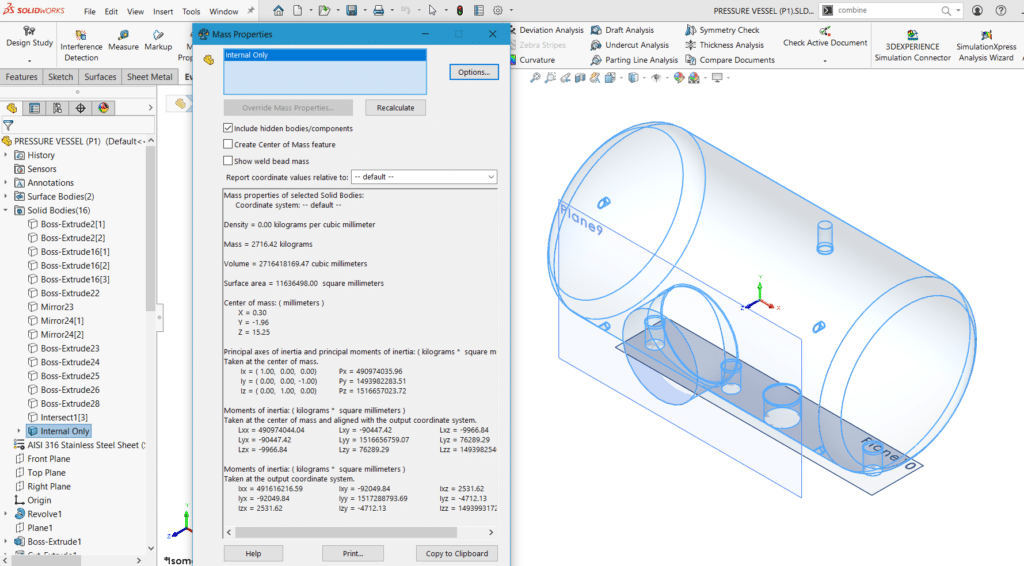
Knowing that for water 1cm3 (volume) is equal to 1ml and 1g, we can double-check that SOLIDWORKS is giving us the correct Mass for our model (which it is) and for our case that mass is equal to 2716.42Kg.
This is just one way to calculate the internal volume on a pressure vessel but the same (or similar) process can be carried out for almost any model and any material inside.
If you want to take things a step further, you could add in an additional plane to simulate a water level and then import your model into SOLIDWORKS Visualize to create a high-quality render.
Note that the render below is just a quick 5-minute render so I challenge you to create a higher resolution render and let us see how it turns out.