

SOLIDWORKS R2025x FD04 is the latest functional-delivery update, bringing targeted CAD and platform improvements for users on the 3DEXPERIENCE platform.
This FD04 release focuses on smoother update control and better cloud collaboration, helping teams keep SOLIDWORKS files compatible while speeding day-to-day 3D CAD workflows.
Below are some of the highlight changes -
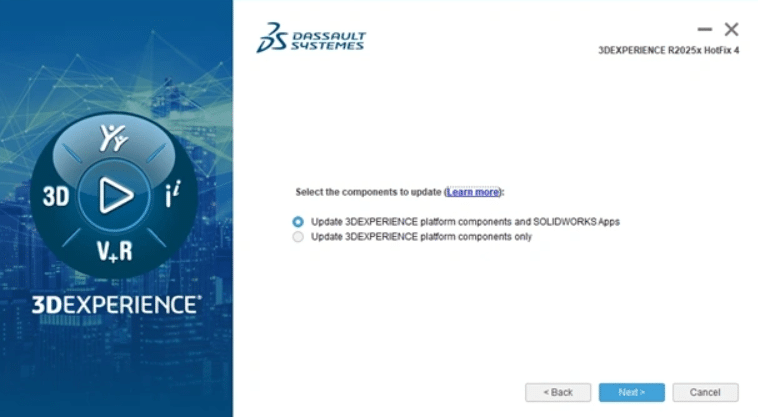
Choose When to Update Your SOLIDWORKS
Customers now have greater control over updates to their SOLIDWORKS apps. Beginning with R2025x FD04, updates will only be mandatory at major releases (e.g., R2026x GA). For minor releases, customers can decide whether to update to the latest version or continue with their current one.
Identifying Objects in Content View
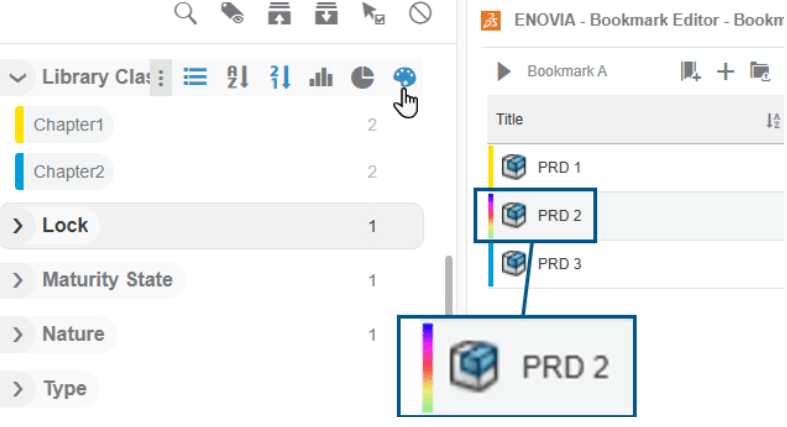
When you Colorise the Tags, the objects that have multiple values now displays with a multicolored bar in the content view of Bookmark Editor.
So now you can instantly identify objects that contain more than one value for the selected tags, the multicolored bar alerts you that more values exist for the same object.
Choosing Action during Drag and Drop
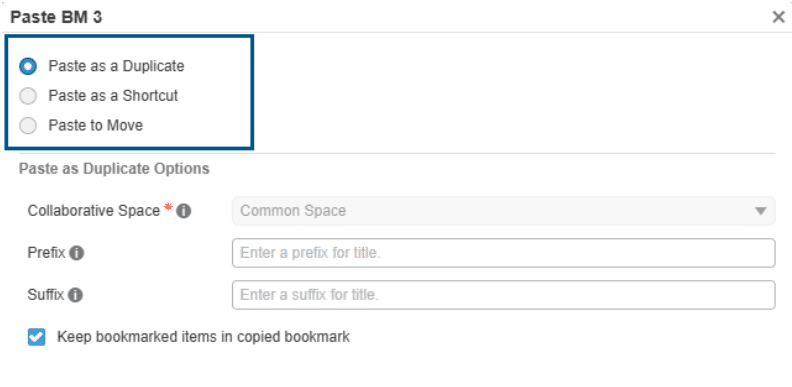
When you drag objects and drop them elsewhere in the Bookmark Editor app, a dialog box now appears letting you choose to move or copy them.
Now you no longer need to set Drag and drop behaviour in advance. Choose the right action each time based on context.
Opening Filtered Assemblies
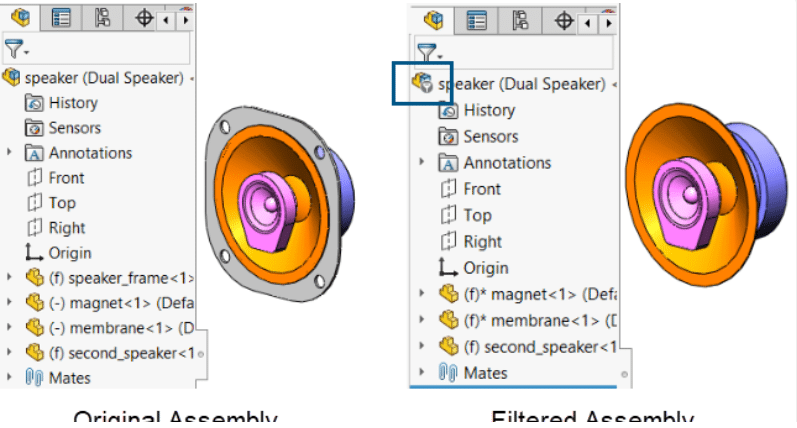
3DEXPERIENCE users can open filtered assemblies from the platform, edit them, and save them locally or back to the platform.
Meaning you can open and work on a specific subset of components from a large assembly without opening the entire assembly.
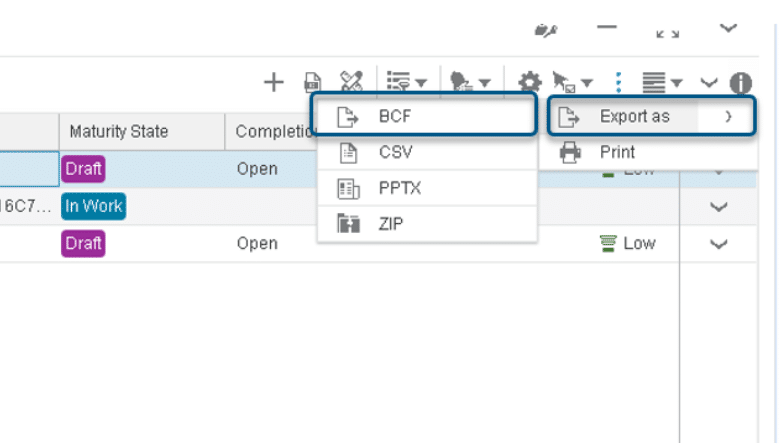
Exporting Issues to BCF Files
Within the Issue Management app you can export issues to a BCF (BIM Collaboration Format) file.
BCF helps you collaborate on issues with other stakeholders by providing structured information about those issues.
Previewing Multifile Documents (3DSearch)
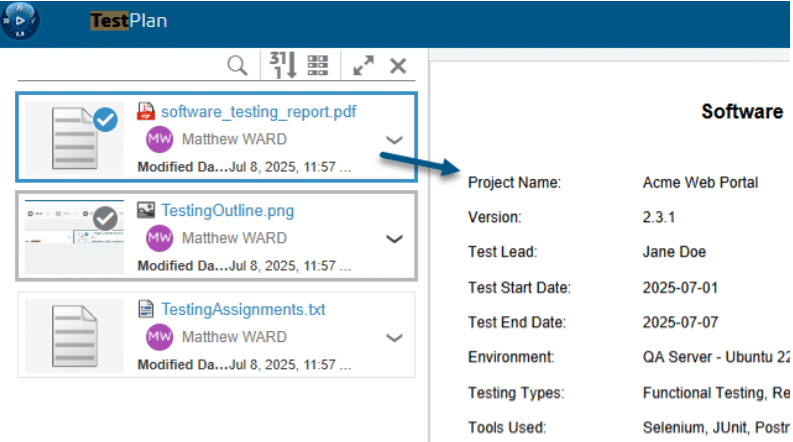
You can preview and navigate through multifile documents in the 3DSearch app.
Now you can more efficiently browse and view files in a multifile document.