There are various reasons why you may need to change your SOLIDWORKS serial number, for instance, if you need to:
Switch to another SOLIDWORKS Standalone, Professional or Premium license.
Change from a standalone license to a network-based license, or vice versa.
Replace a term license that has expired with a renewed license.
Whatever the reason may be, you can change a SOLIDWORKS serial number directly through the SOLIDWORKS Installation Manager. You do not need to uninstall or reinstall SOLIDWORKS. Follow our step-by-step guide below to see how:
Deactivate your license by opening SOLIDWORKS, then go to Help > Licenses Deactivate (NOTE: this step is not required if you are changing from a network-based license to a standalone license, please skip to step 4 instead).
Select the products you would like to deactivate > choose the ‘Automatically over the internet (recommended)’ option > enter your email address then press Next to complete the deactivation.
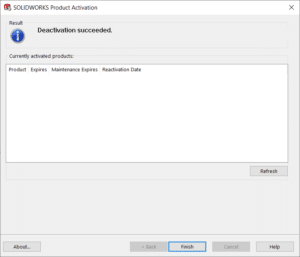
After a few moments you should see the ‘Deactivation succeeded’ screen and you can click Finish.
****Close SOLIDWORKS****
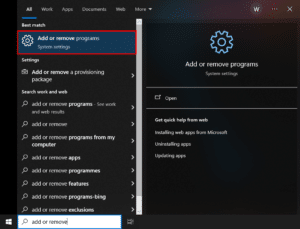
Type ‘Add or remove’ into your Windows search bar and open the ‘Add or remove programs’ system settings.
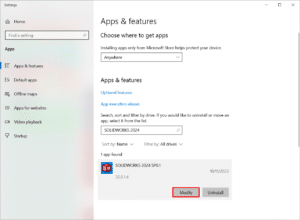
Find SOLIDWORKS in the list of apps, select the latest version installed, and click Modify to open the SOLIDWORKS Installation Manager.
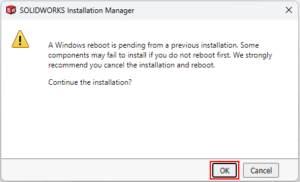
If you see message about a pending Windows reboot, you can click OK to dismiss it and continue.
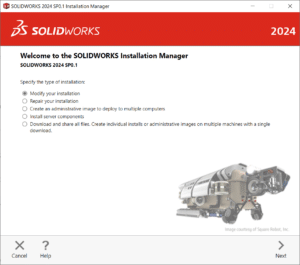
Select the ‘Modify your installation’ option and press Next
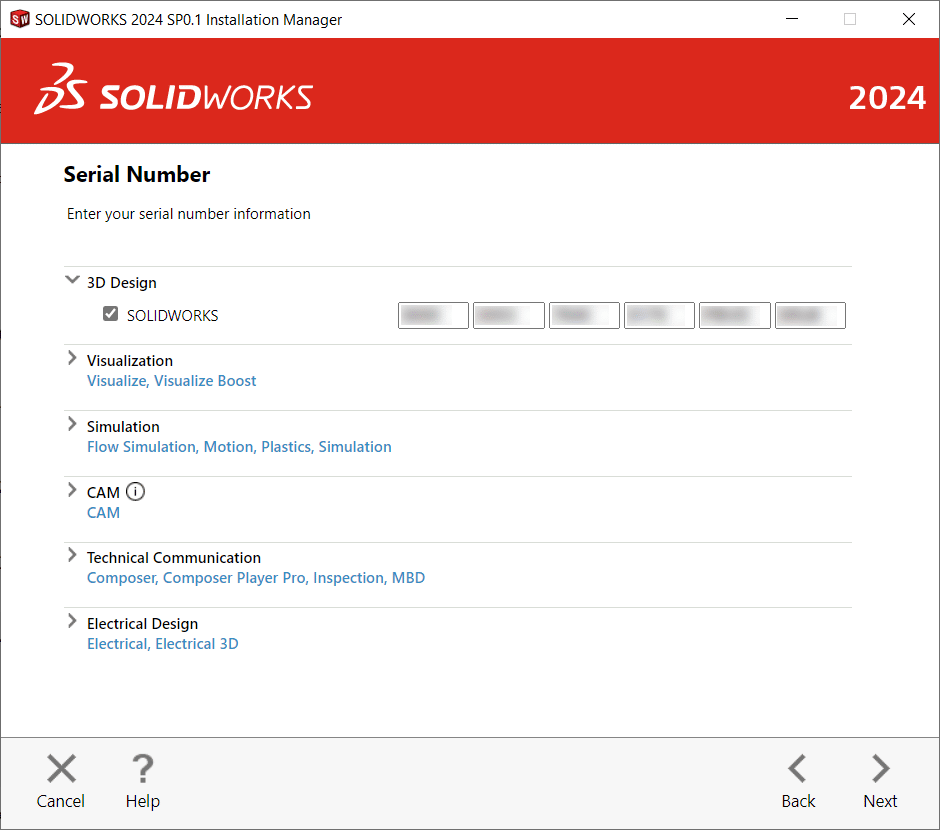
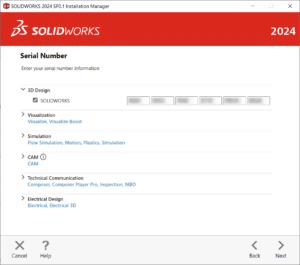
Change your serial number as required on the Serial Number page then press Next.
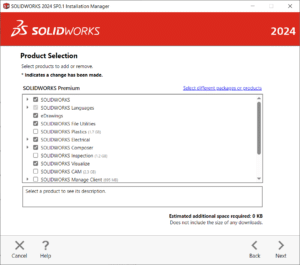
If you added any additional serial numbers/products, you can choose to install them in the Product Selection page. Otherwise, press Next to continue.
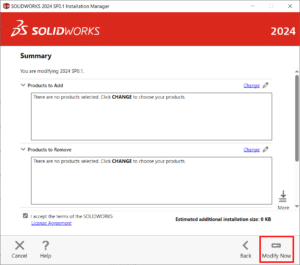
Click Modify Now to complete the change.
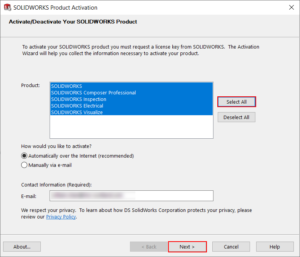
Open SOLIDWORKS to activate your license. You can press Select all to activate all your licenses > choose the ‘Automatically over the internet (recommended)’ option > enter your email then press Next to complete the activation.
You should then see the ‘Activation/Reactivation succeeded’ window, which means the serial number change has been completed.
In engineering and manufacturing, data is at the heart of almost every stage of product development. From CAD models and technical drawings to project information and design data, organisations rely on accurate, accessible information to design, build and deliver...
Modern engineering demands faster development, smarter design decisions and fewer costly mistakes. Engineering simulation gives designers the ability to test and evaluate their ideas digitally before committing to physical prototypes, tooling or production. With tools...
For nearly three decades, SOLIDWORKS has empowered engineers to achieve more through innovation and productivity. SOLIDWORKS AI takes this mission to the next level by embedding advanced AI capabilities directly into the tools engineers trust, enabling faster design,...
Manage Consent
To provide the best experiences, we use technologies like cookies to store and/or access device information. Consenting to these technologies will allow us to process data such as browsing behaviour or unique IDs on this site. Not consenting or withdrawing consent, may adversely affect certain features and functions.
Functional
Always active
The technical storage or access is strictly necessary for the legitimate purpose of enabling the use of a specific service explicitly requested by the subscriber or user, or for the sole purpose of carrying out the transmission of a communication over an electronic communications network.
Preferences
The technical storage or access is necessary for the legitimate purpose of storing preferences that are not requested by the subscriber or user.
Statistics
The technical storage or access that is used exclusively for statistical purposes.The technical storage or access that is used exclusively for anonymous statistical purposes. Without a subpoena, voluntary compliance on the part of your Internet Service Provider, or additional records from a third party, information stored or retrieved for this purpose alone cannot usually be used to identify you.
Marketing
The technical storage or access is required to create user profiles to send advertising, or to track the user on a website or across several websites for similar marketing purposes.