
AutoCAD Commands Explained: Essential Tips for Working Faster and More Efficiently
Whether you're new to AutoCAD or looking to improve your drafting efficiency, understanding how commands work is one of the quickest ways to boost productivity. Commands are the foundation of every action in AutoCAD, from drawing basic geometry to modifying complex designs. Autodesk highlights command mastery as a key productivity skill, with the Command Line remaining one of the fastest ways to interact with the software.
In this practical guide, we have broken down how to use AutoCAD commands effectively, along with practical tips that can help streamline your workflow.
Why AutoCAD Commands Matter
Every drawing operation in AutoCAD is driven by a command. While many users access tools through the Ribbon interface, experienced CAD professionals often rely on keyboard commands and aliases to work more efficiently.
Benefits of using commands include:
- Faster drawing and editing workflows.
- Reduced reliance on navigating menus.
- Greater precision when entering values.
- Improved productivity on large projects.
- Easier adoption of advanced AutoCAD features.
As your confidence grows, command-based workflows become second nature, helping you spend less time searching for tools and more time designing.
Starting Commands in AutoCAD
There are several ways to launch a command in AutoCAD:
- Select a tool from the Ribbon.
- Use a toolbar or menu option.
- Access a contextual right-click menu.
- Enter the command directly into the Command Line.
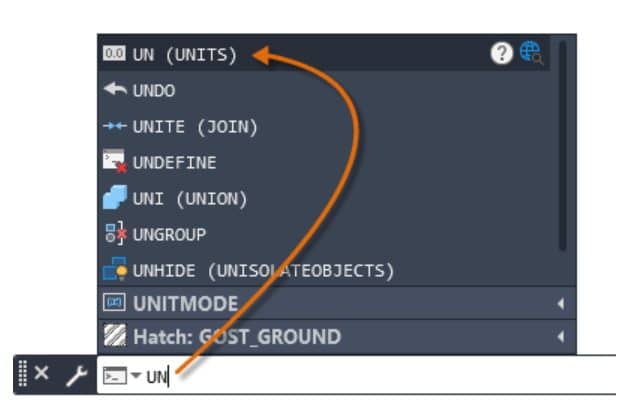
For many users, typing commands is the fastest method.
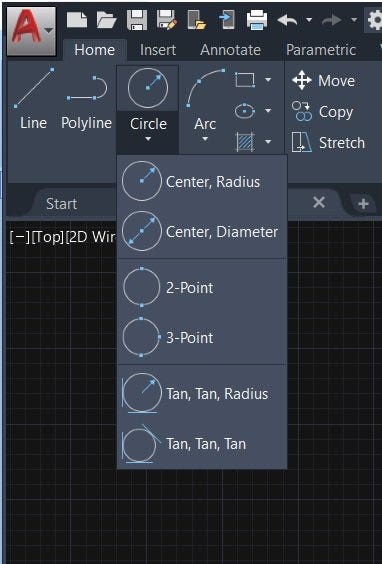
Example: Creating a Circle
- Type CIRCLE or simply C.
- Press Enter or Spacebar.
- Follow the prompts to define the circle.
A useful productivity tip is that pressing Enter again will repeat the previous command, allowing you to quickly create multiple objects without retyping the command.
Make the Most of Dynamic Input
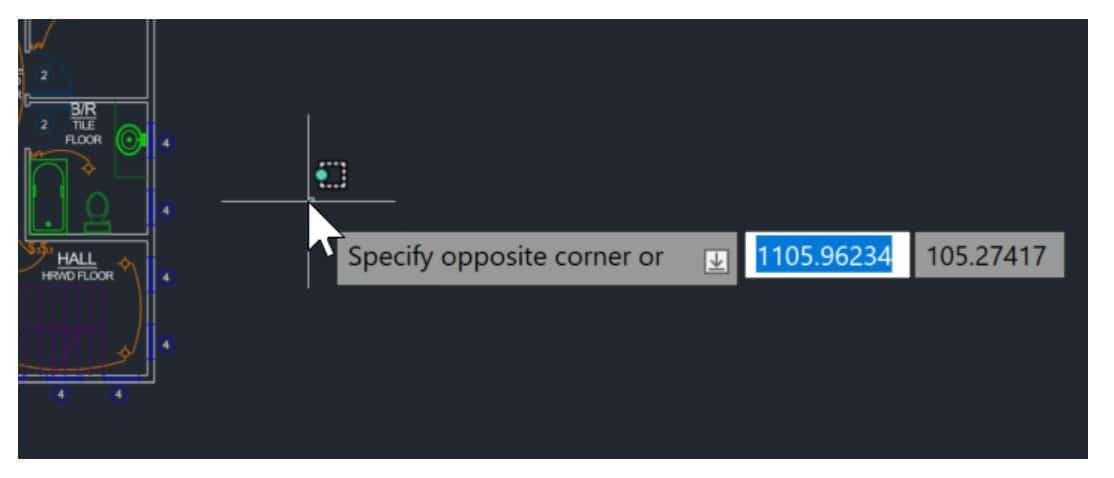
Dynamic Input displays command prompts directly next to your cursor, reducing the need to constantly look at the Command Line.
When enabled, Dynamic Input allows you to:
- Enter distances and coordinates at the cursor.
- Specify angles directly while drawing.
- Access command options without moving away from your workspace.
Example: Drawing a 2-Point Circle
- Start the CIRCLE command.
- Type 2P and press Enter.
- Select the first point.
- Define the second point using coordinates or cursor input.
This feature can significantly improve drafting speed, particularly when creating geometry that requires accurate dimensions.
Understanding the Command Line
The Command Line is more than a place to type commands. It also provides:
- Real-time command prompts
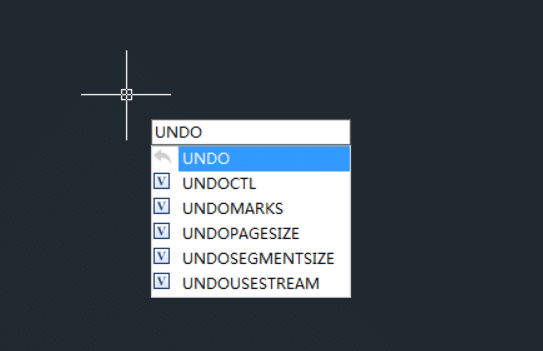
- AutoComplete suggestions
- Command history.
- Access to system variables
- Command options and shortcuts.
AutoCAD's AutoComplete functionality can even suggest commands when only part of the name is entered, helping users discover new tools and work more efficiently.
💡 Pro Tip: If you can't remember a full command name, start typing and review the suggested options that appear. Over time, AutoCAD adapts to your usage patterns and prioritises frequently used commands.
Cancelling and Undoing Commands
Mistakes are part of every design process. Fortunately, AutoCAD provides simple ways to recover.
Cancel a Command - Press Esc to:
- Exit an active command.
- Cancel object selection.
- Close command options.
- Undo and Redo.
Use:
- UNDO to reverse previous actions.
- REDO to restore actions that were undone.
These tools provide a safety net when experimenting with designs or making modifications.
Learn Command Aliases for Greater Speed
Command aliases are shortened versions of common commands.
Using aliases can dramatically reduce the number of keystrokes required throughout the day. Many experienced AutoCAD users customise aliases to suit their own workflows and frequently used tools.
| Command | Alias |
| LINE | L |
| CIRCLE | C |
| MOVE | M |
| COPY | CO |
| OFFSET | O |
| TRIM | TR |
Build Muscle Memory Through Practice
One challenge for new users is remembering commands. The good news is that efficiency develops naturally through repetition.
The AutoCAD community consistently recommends focusing on a core group of commands first, then gradually expanding your toolkit as your projects become more complex. Over time, command entry becomes instinctive and significantly faster than navigating menus.
Common AutoCAD Commands Every User Should Know
| Command | Purpose |
| LINE | Create straight line segments |
| CIRCLE | Draw circles |
| MOVE | Relocate objects |
| COPY | Duplicate objects |
| OFFSET | Create parallel |
| TRIM | Create parallel geometry |
| EXTEND | Lengthen object to boundaries |
| FILLET | Create rounded corners |
| CHAMER | Create angled corners |
| ARRAY | Create patterened corners |
| MATCHPROP | Copy object properties |
| DIM | Add dimensions |
Improve Your AutoCAD Productivity with Training
Learning commands is one of the fastest ways to become more productive in AutoCAD. While understanding the basics is important, structured training can help you uncover advanced workflows, shortcuts and best practices that save significant time on real-world projects.
At TMS CADCentre, our Autodesk-certified training courses are designed to help users at every level develop practical AutoCAD skills that can be applied immediately in the workplace.
Whether you're new to AutoCAD or looking to enhance your existing knowledge, investing time in mastering commands is a simple step that delivers long-term productivity gains.