

If you find yourself repeatedly drawing the same symbols, components or standard details, there's a better way to work. AutoCAD Blocks allow you to create reusable content that can be inserted into any drawing, helping you work faster while maintaining consistency across your projects.
Whether you're producing architectural layouts, manufacturing drawings or MEP designs, understanding how Blocks work is a simple way to improve productivity and reduce repetitive drafting tasks.
In this quick guide, we'll explain what AutoCAD Blocks are, how to insert them and a few best practices that will help you get the most from them.
What is an AutoCAD Block?
A Block is a collection of objects that have been combined into a single reusable object. Instead of managing multiple lines, circles and text individually, you can treat them as one component.
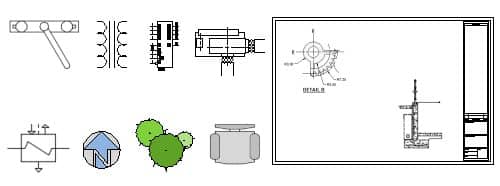
- Blocks are commonly used for:
- Standard symbols
- Furniture and fixtures
- Mechanical and electrical components
- Detail views
- Title blocks
- Company-standard drawing elements
Once created, a Block can be inserted multiple times throughout a drawing without recreating the geometry each time.
Why Use Blocks?
Using Blocks isn't just about saving time; it's about improving the quality and consistency of your drawings. Some of the key benefits include:
Faster drafting
Rather than recreating the same object repeatedly, you can insert it in seconds, allowing you to focus on the design itself instead of repetitive tasks.
Greater consistency
Using standardised Blocks helps ensure symbols, components and details appear the same across every project, reducing errors and improving drawing quality.
Easier editing
Each inserted Block is linked to its underlying definition. If the Block definition is updated, every instance within the drawing can be updated accordingly, making design changes much easier to manage.
Smaller drawing files
Multiple Block references require less storage than duplicating the same geometry repeatedly, helping keep drawing files more manageable.
Additional project data
Blocks can also contain attributes such as part numbers, equipment IDs, service dates or asset information, making them valuable for documentation and data extraction as well as drafting.
Understanding How Block Insertion Works
Before inserting a Block, it's useful to understand the four key elements involved.
Block Definition
The Block definition stores all the geometry that makes up the Block. This can exist within your current drawing, a drawing template, or a separate DWG file that acts as a reusable library.
Many organisations maintain libraries of approved Blocks to ensure consistency across teams and projects.
Block Reference
When you insert a Block, AutoCAD creates a Block reference. This is the instance that appears in your drawing while still referring to the original Block definition.
This approach makes it possible to reuse the same content many times without duplicating all the geometry.
Base Point
Every Block has a base point, sometimes called the insertion point. This determines exactly where the Block attaches to your cursor during placement and becomes the grip point when the Block is selected later.
Choosing a logical base point, such as the centre of a symbol or the corner of an object, makes placement far more intuitive.
Block Insertion Tools
AutoCAD provides several ways to insert Blocks, allowing you to work with content stored locally, on a network or within the current drawing.
Common insertion methods include:
- The Blocks palette
- The Block Gallery
- Tool Palettes
- DesignCenter
The right method depends on how your organisation stores and manages its standard content.
Best Practices for Working with Blocks
To get the most from Blocks, it's worth following a few simple guidelines.
Create standard libraries. Maintaining approved Block libraries helps teams produce consistent drawings and reduces duplicated effort.
Use meaningful names. Clear naming conventions make it much easier to locate the correct Block when projects become more complex.
Choose the correct base point. A well-positioned insertion point makes Blocks easier to place accurately.
Include attributes where appropriate. Adding information such as equipment tags or asset numbers can improve documentation and support downstream workflows.
Review and maintain your libraries. Keeping Block libraries organised ensures outdated content isn't reused across new projects.
Ready to Try Adding Blocks to Your Next Model?
Blocks are one of AutoCAD's most valuable productivity features. By replacing repetitive drafting with reusable, intelligent content, you can produce drawings more quickly, maintain greater consistency and simplify future revisions.
Whether you're creating your own Block libraries or using company-standard content, understanding how Blocks are inserted and managed is an essential AutoCAD skill that will benefit almost every project.
If you'd like to improve your AutoCAD workflows or develop your team's CAD skills, TMS CADCentre offers Autodesk-authorised training courses designed to help users work more efficiently and confidently with industry-standard tools.