
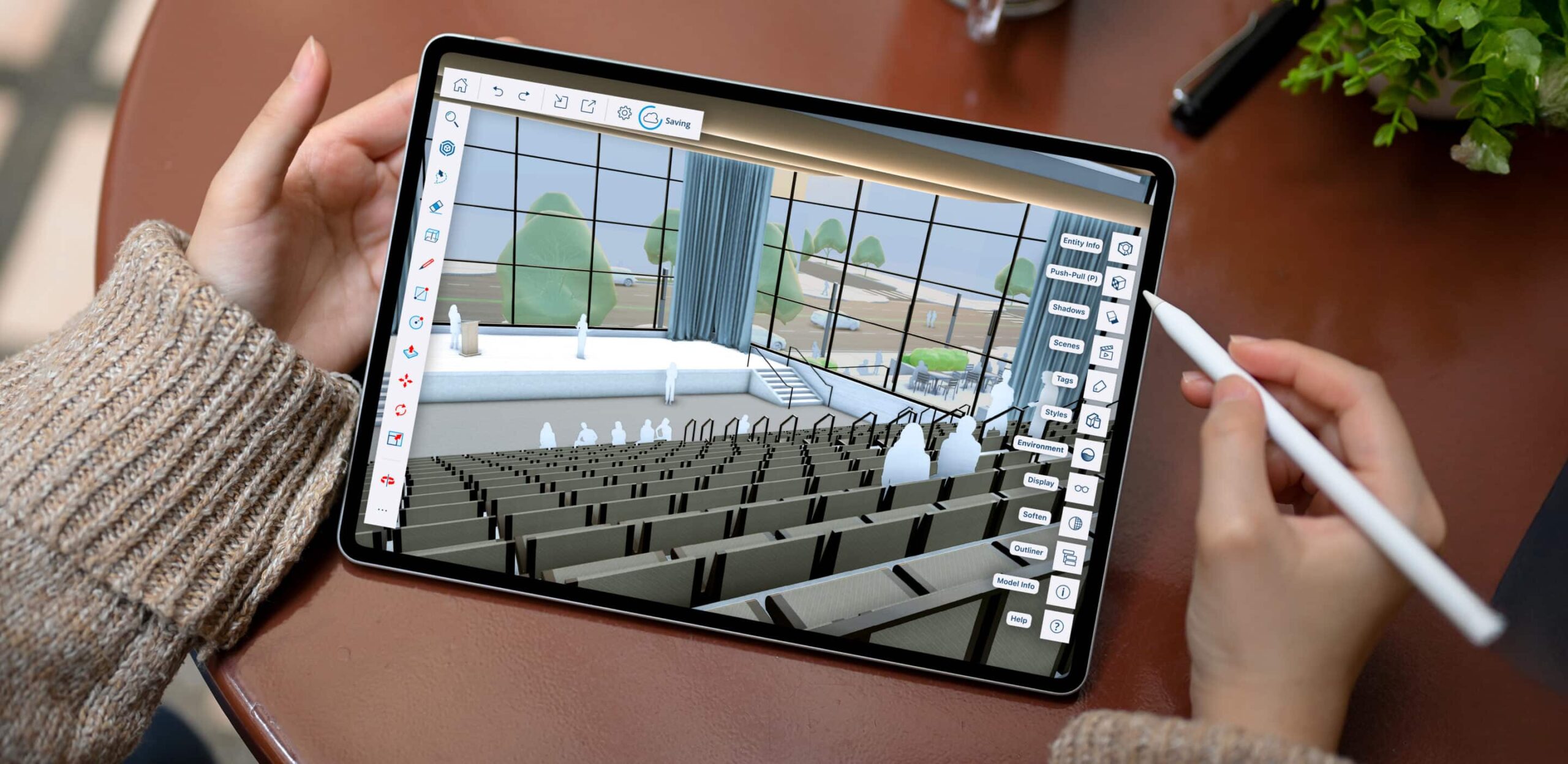
If you regularly work with existing buildings, you’ll know how much information can come back from a site visit. Measurements, photos and notes all need to be turned into something useful before the design work can really get going.
SketchUp for iPad can help make that process simpler.
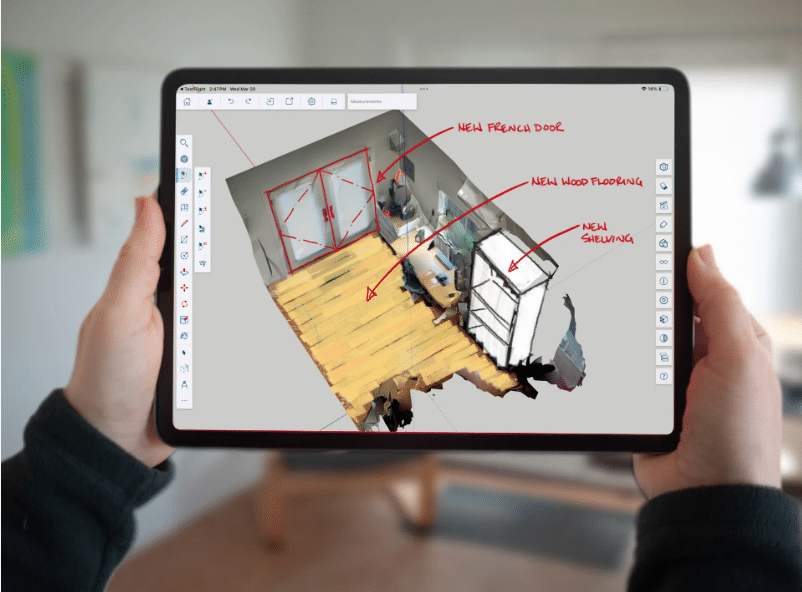
With Scan-to-Design, you can use a compatible LiDAR-enabled iPad to scan an existing interior and create 3D geometry in SketchUp. You can then use this as a starting point for your model and begin working on ideas while you’re still on site.
Here’s a closer look at how it works and where it could fit into your SketchUp workflow.
Scan-to-Design is a SketchUp Labs feature available in SketchUp for iPad.
It uses the LiDAR scanner found on compatible iPads to capture an existing space and turn the scan into 3D geometry.
This can save a fair amount of setup time when you’re working on an existing room or building. Instead of starting with a completely blank model and recreating the space from your measurements, you have existing geometry to work from.
As Scan-to-Design is part of SketchUp Labs, it’s worth remembering that the feature is still being developed and may change as new updates are released.
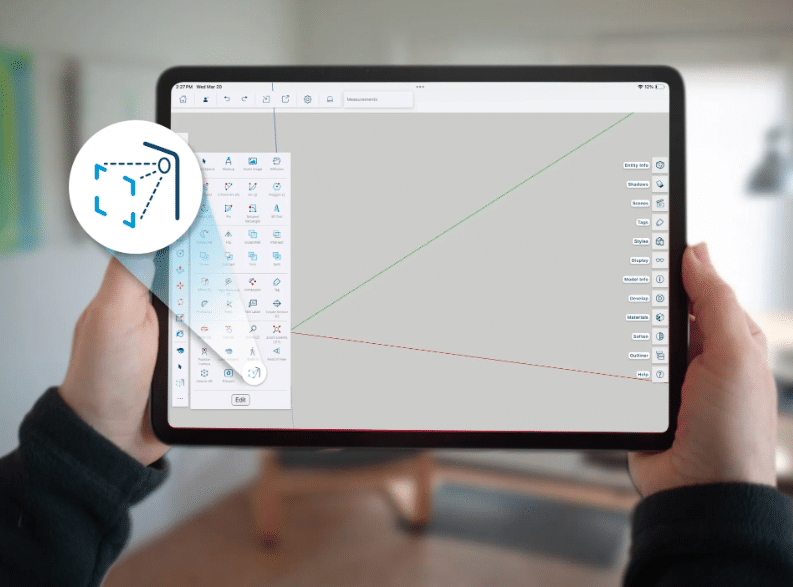
To get started, open your project in SketchUp for iPad and select the Scan tool.
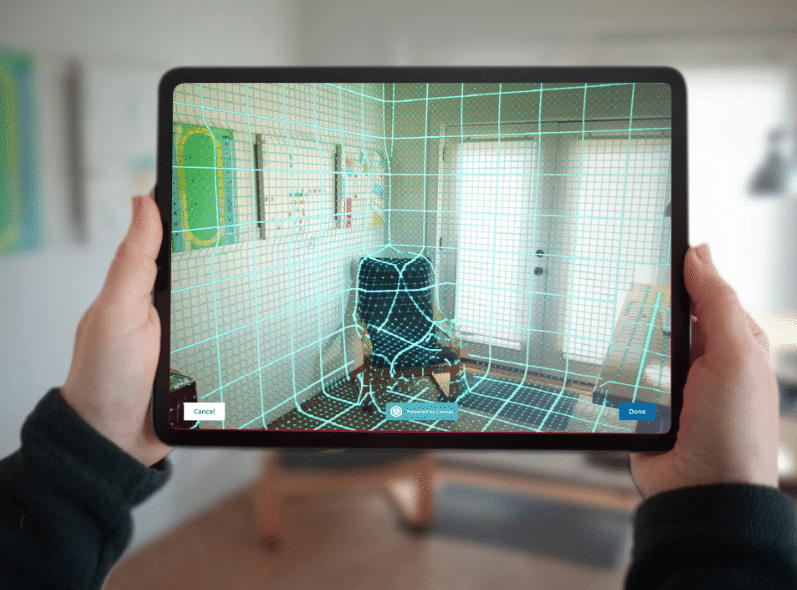
You can then walk around the room with your iPad and capture the space around you. SketchUp provides guidance on screen as you scan, helping you see which areas you’ve already captured.
Once you’re happy with the scan, select Done and SketchUp will process the information.
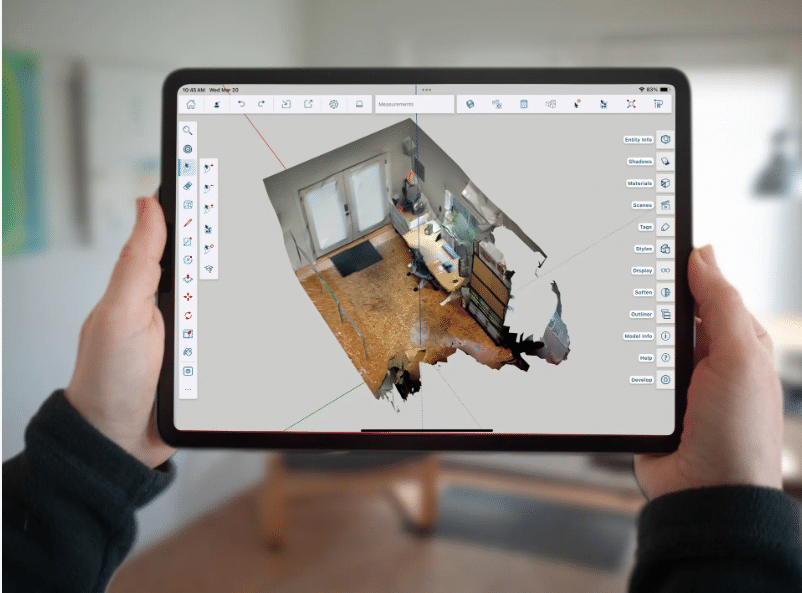
The resulting geometry is added to your model, ready for you to review and start working with.
It’s a good idea to take a look at the Scan-to-Design settings before you begin. Depending on how you want to use the scan, you can adjust options such as the level of detail, textures and the type of geometry created.
There are different ways to bring the scanned information into your SketchUp model.
The Canvas option creates a textured representation of the space. Walls, floors and ceilings can be simplified, while more complicated objects can be represented as textured mesh geometry.
There’s also the option to use Apple RoomPlan, which creates a simpler version of the room using SketchUp edges and faces. Doors and windows are recognised as openings, giving you cleaner geometry to start working with.
The best option will depend on what you’re trying to achieve. Sometimes you’ll want more visual detail from the existing space. For other projects, a simpler model may be easier to work with.
Tags can then be used to control which parts of the scan are visible as you develop the model.
One of the useful things about this workflow is that you don’t necessarily have to wait until you’re back at your desk to start working on the project.
Once you’ve scanned the room, you can continue modelling in SketchUp for iPad.
You might want to test a different layout, add new elements or simply check an idea against the existing space. Being able to do that while you’re still on site can help you spot questions or missing information before you’ve left.
SketchUp for iPad supports touch controls, Apple Pencil, mouse and keyboard, so you can work in whichever way feels most comfortable.
A model you start on your iPad doesn’t have to stay there.
SketchUp for iPad works with Trimble Connect, so projects can be saved online and accessed from other supported SketchUp applications. For example, you could scan a room and make some initial changes on site, then pick the project back up when you’re in the office.
This can be particularly handy if different people are involved at different stages of a job.
SketchUp’s collaboration tools have also developed since Scan-to-Design was first introduced.
Models can be shared with other people for review, and SketchUp’s Sharing and Commenting tools provide a way to discuss the project around the model itself. That could mean sending a design to a colleague for their input or sharing it with a client before you move on to the next stage.
Keeping those comments alongside the model can also be easier than trying to piece together feedback from separate emails and messages.
For projects that need more than an interior scan, SketchUp also has tools for bringing real-world site information into your model.
Add Location can be used to geolocate a project and import site context. Recent SketchUp updates have expanded these tools, including the ability to work with 3D building context in supported locations.
So, depending on the project, you could use Scan-to-Design to capture an existing interior and Add Location to give you a better understanding of the wider site.
You’ll need SketchUp for iPad and a compatible iPad with LiDAR to use Scan-to-Design.
It’s worth checking SketchUp’s current system requirements before getting started, particularly if you’re buying an iPad specifically for this type of work.
Scan-to-Design is also still a SketchUp Labs feature. Labs gives SketchUp users early access to features that are being developed, so functionality can change as Trimble continues to work on it.
If you’re already using an iPad on site, Scan-to-Design gives you another way to get information into SketchUp without having to recreate everything manually when you return to the office.
For projects involving existing spaces, it can be a useful starting point. Scan the room, check the resulting model and carry on developing the project in SketchUp.
And because your model can move between iPad and desktop workflows, you’re not tied to one device for the rest of the job.
If you’re considering SketchUp for your business but aren’t sure which subscription would suit the way you work, speak to the TMS CADCentre team. We can talk through the available options and help you choose the right SketchUp package for your requirements.