
For many architecture, engineering and construction teams, Revit is where detailed BIM models are developed, while SketchUp is where ideas evolve quickly.
Being able to move between both platforms without rebuilding geometry saves valuable time, improves collaboration and gives every member of the project team access to the information they need.
SketchUp‘s native Revit Importer has continued to evolve, making it easier than ever to bring Revit models directly into SketchUp while preserving building intelligence, project structure and model organisation. Recent updates have introduced more control over imported content, improved BIM metadata and greater compatibility with the latest Revit releases.
Here are six practical ways to make the most of the Revit Importer.
The quality of your SketchUp model starts long before you click Import.
Before bringing your project into SketchUp, review your Revit model and remove anything that isn’t required for the task at hand. Furniture, MEP services or construction elements may not be necessary if you’re producing concept visuals or planning presentations.
A cleaner Revit model means:
The importer converts Revit families into SketchUp components and organises them using tags, so reducing unnecessary content creates a much more manageable model.
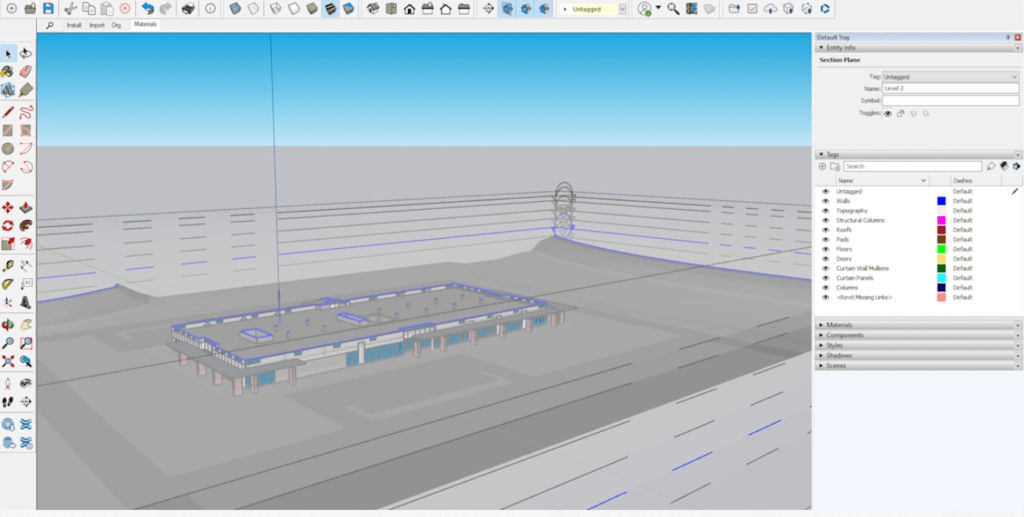
One of the biggest improvements to the Revit Importer is the ability to filter imported content.
Instead of importing an entire BIM model, you can now choose specific:
This gives designers much greater control over the information they work with.
Whether you’re reviewing an architectural shell, coordinating landscaping or preparing client visuals, importing only the relevant data keeps your SketchUp model lightweight and easier to work with.
The Revit Importer doesn’t simply transfer geometry. It also preserves valuable BIM information that can be used throughout your workflow.
Recent updates have improved how metadata is imported by separating Type and Instance properties, making it easier to identify and work with individual building elements inside SketchUp.
This is particularly useful when:
The result is a SketchUp model that retains much of the intelligence from the original Revit project.
Another recent enhancement is support for Revit Rooms and Spaces.
These are imported as SketchUp components with their own tags and materials, helping designers understand how spaces are organised without manually recreating room data.
For architects and interior designers this makes it easier to:
It’s another step towards maintaining valuable BIM information throughout the design process.
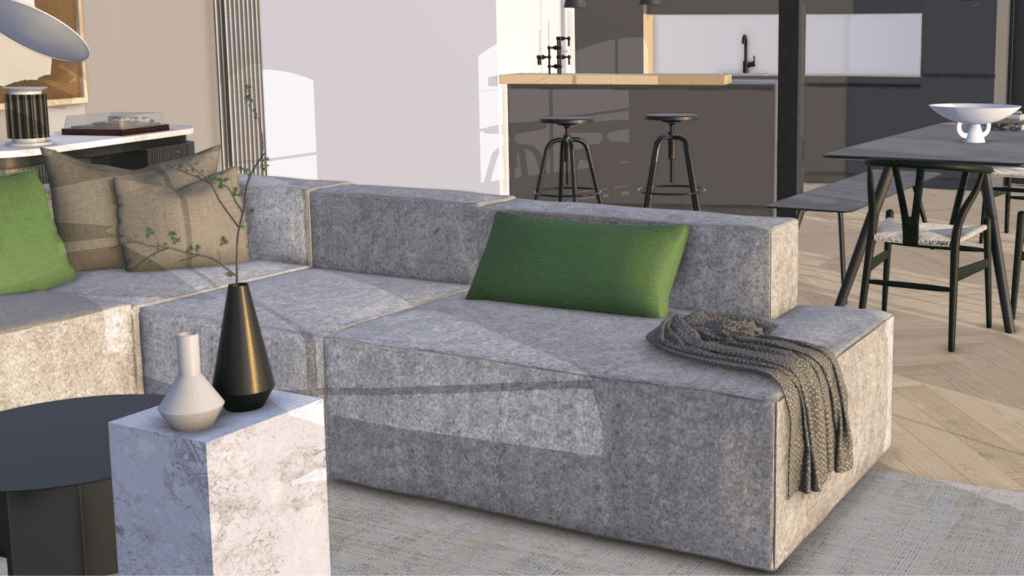
One of SketchUp’s biggest strengths is how quickly ideas can be explored.
Rather than making every design change inside a detailed BIM model, many teams use SketchUp to investigate options, create concept designs and communicate ideas before updating Revit.
Because imported models retain their organisation and remain lightweight, project teams can:
This makes SketchUp an excellent companion to Revit rather than a replacement.
Autodesk releases a new Revit version every year, and SketchUp regularly updates the Revit Importer to maintain compatibility.
If you’re working with the latest Revit files, it’s worth checking that your Revit Importer extension is up to date.
SketchUp currently supports Revit files from older versions right through to the latest supported releases, although there can occasionally be a short delay after Autodesk introduces a new file format while compatibility is updated.
Keeping both SketchUp and the importer updated ensures you have access to:
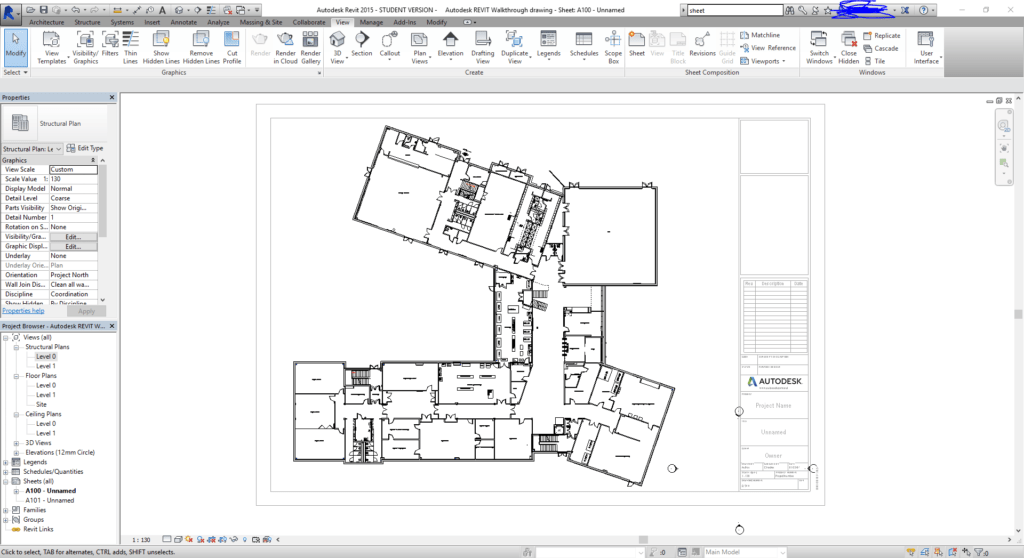
Many organisations don’t work exclusively in one application. Instead, they use the strengths of both platforms.
Revit provides the detailed BIM environment needed for documentation and coordination, while SketchUp offers the speed and flexibility required during concept design, visualisation and client engagement.
Together they create a workflow that helps teams:
As the Revit Importer continues to evolve, moving between both applications is becoming increasingly seamless, allowing designers to spend less time rebuilding models and more time developing great ideas.
Whether you’re looking at SketchUp Pro, SketchUp Studio or SketchUp Advanced Workflows, our specialists can help you find the right solution for your business.
Get in touch with TMS CADCentre to discuss your workflow, licensing options and how SketchUp can integrate with your existing Autodesk environment.