Keeping drawings consistent across a Revit project can become increasingly difficult as models grow and more people become involved.
Different visibility settings, detail levels or graphic styles can quickly creep into views, creating additional work when it comes to reviewing and preparing project documentation.
Revit View Templates provide a simple way to standardise these settings across your project. Instead of configuring individual views manually, you can define your preferred settings once and apply them wherever they are needed.
This can help your team save time, reduce repetitive work and produce clearer, more consistent project documentation.

What Are View Templates in Revit?
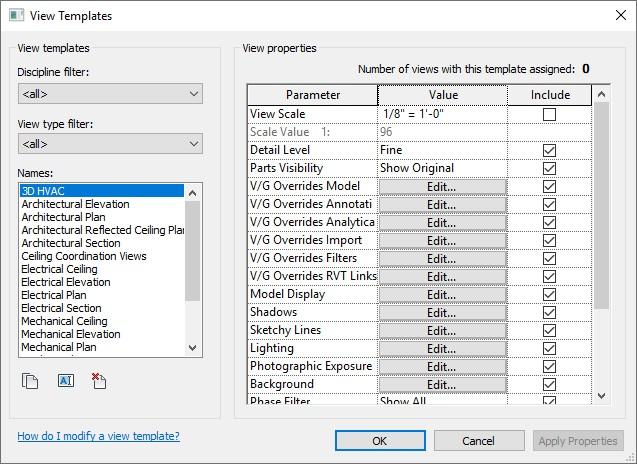
View Templates are predefined collections of view properties that can be applied to views within a Revit project.
Depending on the type of view, a template can be used to control settings including:
- Visibility and Graphics
- Detail Level
- View Scale
- Discipline
- Phase and Phase Filters
- Model and annotation category visibility
- Filters
- View Range
- Graphic Display Options
Rather than checking and adjusting these settings every time a new view is created, you can apply the appropriate View Template and let Revit control the required properties.
For teams working across larger projects, this provides a much more efficient way to maintain consistent drawing standards.
Why Use View Templates in Revit?
As a project develops, maintaining consistency across dozens or even hundreds of views can become challenging.
Without a standardised approach, you can easily end up with different line styles, missing annotations, incorrect visibility settings or views displaying information that isn't required.
View Templates help reduce these inconsistencies by giving your team an established set of view settings to work from. They can help you:
- Create views more quickly
- Maintain a consistent drawing appearance
- Reduce repetitive manual adjustments
- Improve quality control
- Support company BIM standards
- Reduce documentation errors
- Make project standards easier for teams to follow
For organisations working to defined BIM or information management standards, View Templates can become an important part of a consistent Revit workflow.
How to Create a View Template in Revit
One of the easiest ways to create a View Template is to start with a view that already looks and behaves the way you want. Once you have configured the visibility, graphics and other relevant properties:
- Select the view you want to use as the basis for your template.
- Create a View Template from the current view.
- Give the template a clear and recognisable name.
- Choose which view parameters the template should control.
- Review the settings and save your template.
It is worth taking some time to establish a clear naming convention, particularly if your project contains several templates.
For example:
Architectural - Floor Plan
Architectural - Presentation
Structural - Framing Plan
MEP - Coordination
General - Elevation
A consistent naming structure makes it much easier for everyone working on the project to find and apply the correct template.

Apply View Templates Across Multiple Views
The real time-saving benefit comes when you begin using your templates across a project.
A View Template can be assigned through the View Template property of a view. Once applied, the properties controlled by that template are standardised for the view.
You can also select multiple compatible views in the Project Browser and assign a template to them together. This can be particularly useful when setting up a project with numerous floor plans, sections or elevations, allowing you to standardise groups of views without configuring each one individually.
Using View Templates Across Revit Disciplines
The same principles can be used across different Revit disciplines, but the way you structure your templates will depend on the information your team needs to communicate.
Architecture
Architectural teams might create dedicated View Templates for:
- Floor Plans
- Reflected Ceiling Plans
- Elevations
- Sections
- Presentation Views
- Working Drawings
This allows different types of architectural drawings to have their own graphical requirements while still following the wider project standards
Structural Engineering
Structural teams can use View Templates to control how structural and linked model information appears across:
- Foundation Plans
- Framing Plans
- Reinforcement Views
- Analytical Views
- Coordination Drawings
Templates can help ensure the information needed by structural teams is clearly displayed without unnecessary model information making drawings difficult to read.
MEP
For MEP teams, View Templates can be particularly useful when working with complex building services models. Templates can help manage the presentation of:
- Mechanical systems
- Electrical systems
- Pipework
- Ductwork
- Equipment
- System filters
- Colour schemes
Creating dedicated templates for different disciplines or coordination requirements can make complex MEP views much easier to understand.
Get More Control with Revit Filters
View Templates become even more useful when combined with Revit Filters.
Filters allow you to control the visibility and graphical appearance of model elements based on defined rules and parameters. For example, you might use filters to distinguish between different systems, highlight particular elements or make coordination information easier to identify. By including these filters within your View Templates, the same graphical rules can then be applied consistently across multiple views.
This reduces manual setup while giving your team much greater control over how project information is presented.
Revit View Template Best Practices
A few simple steps can make View Templates much easier to manage:
- Establish your core templates before detailed project work begins.
- Use clear and consistent naming conventions.
- Avoid creating unnecessary templates with only minor differences.
- Decide which parameters should be controlled by each template.
- Review templates as project or company standards change.
- Combine View Templates with Filters where appropriate.
- Include your standard View Templates within your Revit project template.
Setting up a structured approach at the beginning can save considerable time later in the project.
Build Consistency into Your Revit Workflow
Revit View Templates offer a relatively simple way to make a significant improvement to your project workflow.
By standardising visibility, graphics and other view properties, your team can spend less time making repetitive adjustments and more time focusing on the project itself.
They can also make it easier to maintain company standards, manage project-wide changes and keep documentation consistent as models become larger and more complex.
If you're looking to improve your Revit knowledge and develop more efficient workflows, TMS CADCentre offers instructor-led Autodesk Revit training for a range of disciplines and experience levels.
Speak to the TMS CADCentre team to find the right Revit training for you or your business.