Improve Your Workflow with AutoCAD's MOCORO and MSTRETCH Express Tools
Many AutoCAD users rely on familiar commands such as Move, Copy, Rotate and Stretch every day. However, fewer users take advantage of the Express Tools, a collection of productivity features designed to reduce repetitive tasks and speed up common workflows.
Two particularly useful Express Tools are MOCORO and MSTRETCH. Both combine or extend standard AutoCAD commands, helping you make changes more efficiently without repeatedly restarting commands.
If you're regularly updating floor plans, layouts or construction drawings, these tools can help save valuable time.

MOCORO - Combine Move, Copy and Rotate into a Single Workflow
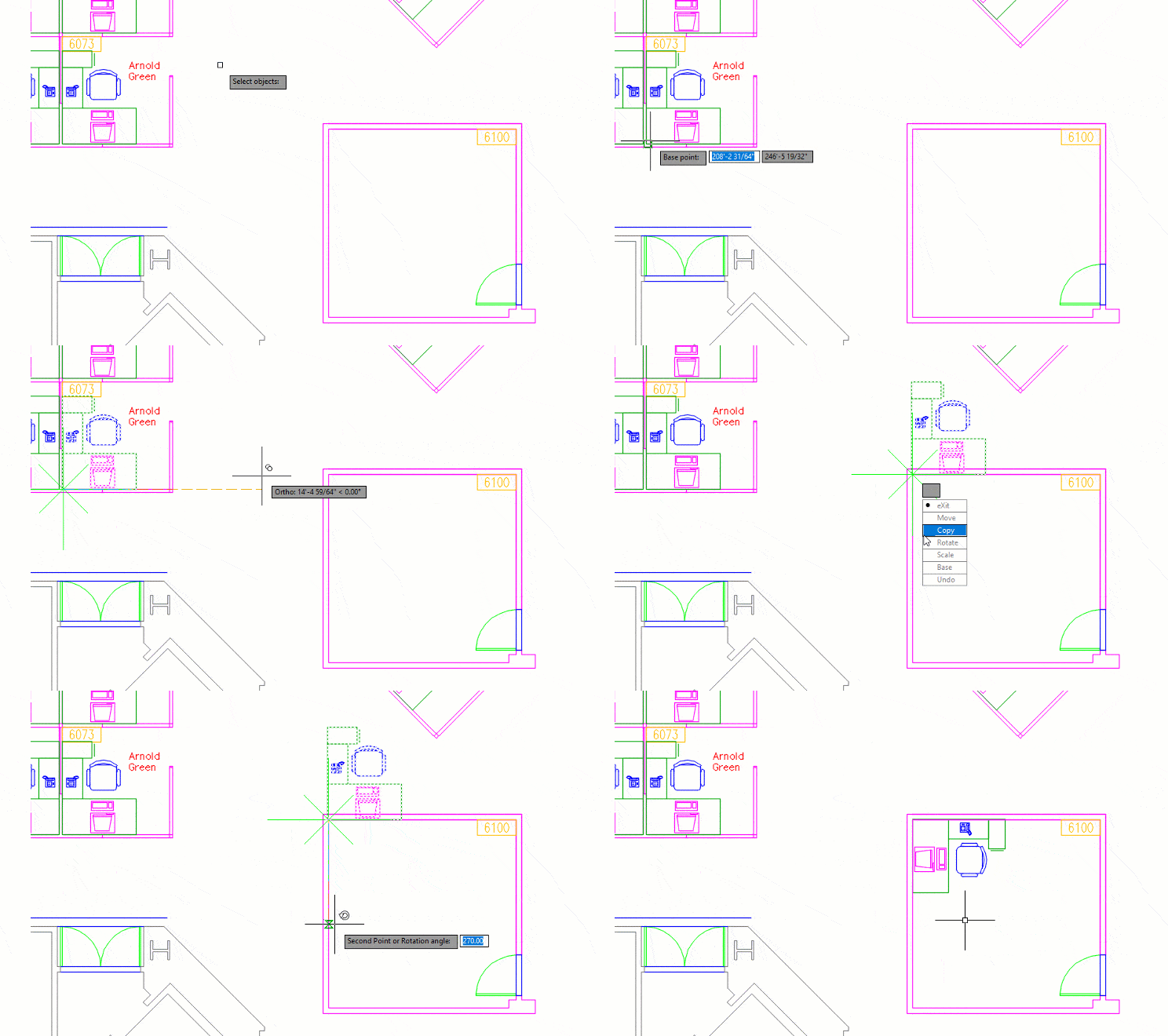
MOCORO stands for MOve-COpy-ROtate, although the command also includes options to change the base point and scale during the same operation.
Rather than completing several individual commands, MOCORO allows you to continue working with the same selected objects while switching between different editing functions.
How it works
- Start the MOCORO command.
- Select the objects you want to edit.
- Specify a base point.
Choose whether to:
- Move
- Copy
- Rotate
- Scale
- Change the base point
- Continue applying additional operations without reselecting the objects.
This creates a much smoother workflow than repeatedly starting separate Move, Copy and Rotate commands.
Practical example
Imagine you're copying furniture layouts between multiple office spaces. Using standard AutoCAD commands, you would typically:
- Copy the objects.
- Rotate them.
- Move them into position.
- With MOCORO, all three actions can be completed within the same command, reducing unnecessary clicks and improving productivity.
Best used for
- Office layouts
- Apartment floor plans
- Repeating room layouts
- Equipment positioning
- Furniture arrangements
MSTRETCH - Stretch Multiple Objects at Once
The standard STRETCH command is a powerful editing tool, but it can become repetitive when several objects need the same modification.
MSTRETCH extends this functionality by allowing multiple objects to be stretched during a single operation.
Instead of repeating the Stretch command several times, you can modify numerous objects together while maintaining consistent adjustments.
How it works
Start MSTRETCH.
- Select the objects you want to edit.
- Define the crossing selection.
- Specify the stretch distance.
AutoCAD applies the same stretch operation across all selected objects.
Practical example
Suppose several rooms within a floor plan need to increase by the same dimension.
Rather than stretching each room individually, MSTRETCH allows multiple walls or objects to be adjusted together, making revisions much quicker.
This can be especially useful when accommodating design changes late in a project.
Best used for
- Floor plan revisions
- Wall adjustments
- Structural layouts
- Repetitive geometry changes
- Design iterations

Why Use Express Tools?
Many Express Tools are designed to simplify tasks that would otherwise require multiple commands. Benefits include:
- Reducing repetitive editing.
- Fewer mouse clicks.
- Faster drawing revisions.
- Improved workflow efficiency.
- Greater consistency across projects.
Although often overlooked, they can become valuable additions to your everyday AutoCAD workflow.
MOCORO vs MSTRETCH
| Command | Best For |
| MOCORO | Combining Move, Copy, Rotate and Scale into a single workflow |
| MSTRETCH | Stretching multiple objects in one operation |
Best Practices
When working on architectural, engineering and construction projects, design changes are inevitable. Making those revisions efficiently can significantly improve productivity.
To get the most from Express Tools:
- Use MOCORO when relocating repeated design elements instead of running multiple separate commands.
- Use MSTRETCH when applying the same modification across several objects.
- Combine Express Tools with object snaps and Dynamic Input for greater accuracy.
- Keep Express Tools enabled so they're readily available when needed.
Learning a few lesser-known commands can make a noticeable difference to your day-to-day drafting efficiency.
Work Smarter with AutoCAD
AutoCAD includes many powerful features beyond its core commands. Express Tools such as MOCORO and MSTRETCH help simplify repetitive editing tasks, allowing you to spend less time modifying drawings and more time progressing your designs.
If you'd like to discover more productivity tips or develop your AutoCAD skills further, TMS CADCentre offers Autodesk-authorised training designed for architecture, engineering and construction professionals looking to work more efficiently.