
Layers are an essential part of keeping AutoCAD drawings organised, particularly as projects become larger and more complex.
The Layer Properties Manager gives you a central place to create, organise and control your layers. But while most AutoCAD users are familiar with changing layer colours, line types and visibility, there are several useful tools within the palette that can make managing your layers much easier.
From sorting and resizing columns to hiding properties you don't need, a few simple adjustments can help you create a cleaner workspace and find the information you need more quickly.
We'll explore practical AutoCAD Layer Properties Manager tools that can streamline your workflow and help you manage layers more efficiently.

What is the AutoCAD Layer Properties Manager?
The Layer Properties Manager allows you to view and manage the layers within your AutoCAD drawing. From here, you can control properties including:
- Layer name
- On/Off status
- Lineweight
- Lock/Unlock
- Colour
- Linetype
- Lineweight
- Transparency
- Plot settings
- Viewport properties
As drawings grow, however, the number of layers and properties displayed can make the palette increasingly difficult to navigate. That's where some of the Layer Properties Manager's less obvious tools can be particularly useful.
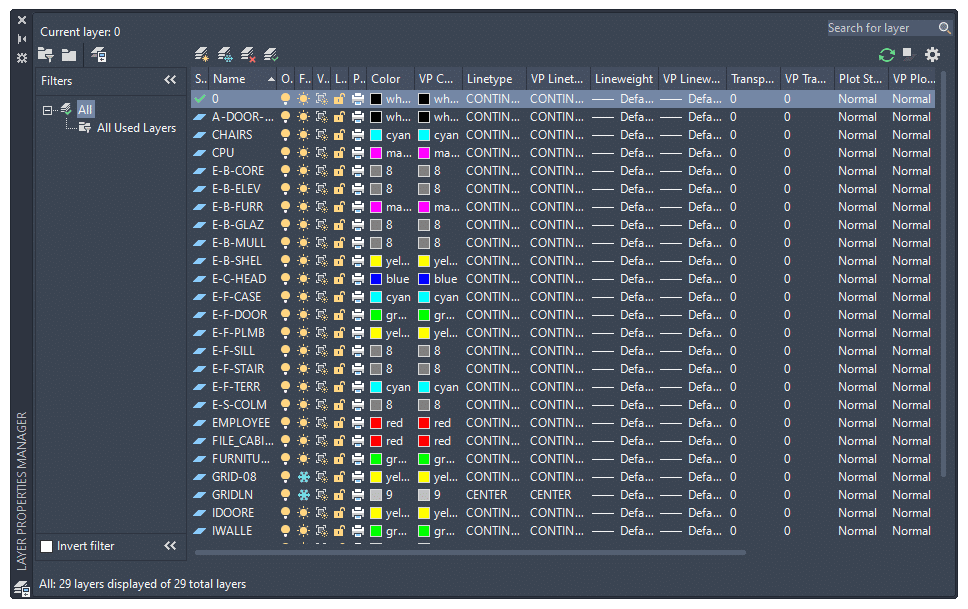
Sort Your AutoCAD Layers by Property
One of the simplest ways to make the Layer Properties Manager easier to navigate is to sort your layers.
Click on any column heading to sort the layer table according to that property. For example, you could sort layers by:
- Name
- Colour
- Linetype
- Lineweight
- Plot status
Clicking the heading again reverses the order. An arrow displayed within the column heading indicates whether the information is currently being sorted in ascending or descending order.
This is a simple feature, but it can make finding particular layers or identifying layers with specific properties much quicker.

Resize Your Layer Property Columns
When you open the Layer Properties Manager, some columns may be too narrow to clearly display their contents.
Rather than manually dragging each column to the correct width, AutoCAD provides a quicker option. Double-click the right-hand edge of a column heading and AutoCAD will automatically resize the column.
This can be particularly helpful when working with longer layer names or when you need to see more information without repeatedly adjusting column widths.
Choose Which Layer Properties Are Displayed
Depending on how you use AutoCAD, you may not need every available property displayed within the Layer Properties Manager.
When you're working in a Layout, for example, AutoCAD can display many columns, including additional viewport properties. Displaying everything can quickly make the palette feel cluttered.
To control which columns appear:
- Hover over one of the column headings.
- Right-click.
- Review the available property columns.
- Click a property to show or hide it.
A check mark indicates that the property is currently displayed. This allows you to simplify the Layer Properties Manager so you're only seeing information that's relevant to your workflow. For example, if there are properties that your organisation doesn't use, removing those columns can give more space to the information you access regularly.
Maximise or Optimise Your Columns
The right-click menu also includes options for Maximize and Optimize. Although these sound similar, they work slightly differently.
Maximise Columns
“Maximize” adjusts the width of the columns to accommodate both the column heading and its contents. This can be useful when you want the full property names to remain visible.
Optimise Columns
"Optimize" adjusts the column width according to the contents of the column. This can produce a more compact Layer Properties Manager and give you more room to display additional properties.
You can apply these options to an individual column or across all columns, depending on how you want to organise the palette. Experimenting with both options can help you find a layout that works best for your drawings and screen setup.

Freeze Important Layer Property Columns
If you have a large number of properties displayed, you may need to scroll horizontally across the Layer Properties Manager.
The problem is that you can quickly lose sight of the layer name you're working with.
AutoCAD's Freeze Column option can help.
Freezing a column keeps that column, along with the columns positioned to its left, visible while you scroll horizontally through the remaining properties. For example, you could keep important information such as the layer Name, On/Off status or Freeze status visible while reviewing properties further across the table.
To freeze a column:
- Right-click the column heading you want to freeze.
- Select Freeze Column.
- Scroll horizontally through your properties.
The frozen columns will remain visible. If you no longer need this behaviour, right-click the relevant heading and select Unfreeze Column. By default, AutoCAD already freezes the Status and Name columns.

Restore the Layer Properties Manager to Default
After experimenting with different column widths, hidden properties and frozen columns, you might decide you'd rather return to the original setup.
Fortunately, you don't have to manually reverse every change.
The right-click menu includes a Restore All to Default option that returns the property columns to their default configuration. This gives you the freedom to customise the Layer Properties Manager without worrying about permanently disrupting your workspace.
Customise Your Layer Property Columns
AutoCAD also provides a dedicated “Customize” option within the column menu.
This gives you another way to control which properties are displayed within the Layer Properties Manager.
For quick changes, right clicking the column headings and selecting individual properties is often the fastest approach. However, the "Customize" option can be useful when you want to review your available properties and make several changes at once.

Create a Layer Properties Manager That Works for You
There isn't necessarily one perfect Layer Properties Manager setup. The most useful configuration will depend on the type of drawings you work with and the layer properties you need to access regularly.
For example, you might choose to:
- Hide properties you rarely use.
- Give more space to longer layer names.
- Freeze important columns so they're always visible.
- Optimise columns to fit more information on screen.
- Sort layers according to the property you're currently reviewing.
Taking a few minutes to organise the palette around your workflow can make layer management much easier, particularly when you're working with drawings containing a large number of layers.
Work More Efficiently with AutoCAD Layers
Good layer management is about more than simply keeping drawings tidy. A well-organised layer structure can make drawings easier to navigate, edit and collaborate on.
The Layer Properties Manager includes plenty of tools to help you manage this information efficiently, and features such as column sorting, optimisation and freezing can make a bigger difference than you might expect.
If you're looking to develop your AutoCAD knowledge further, TMS CADCentre is an Autodesk Authorised Training Centre, offering instructor-led AutoCAD training for beginners and existing users looking to build their skills.
Explore our upcoming AutoCAD training courses or contact our team to discuss your training requirements.